
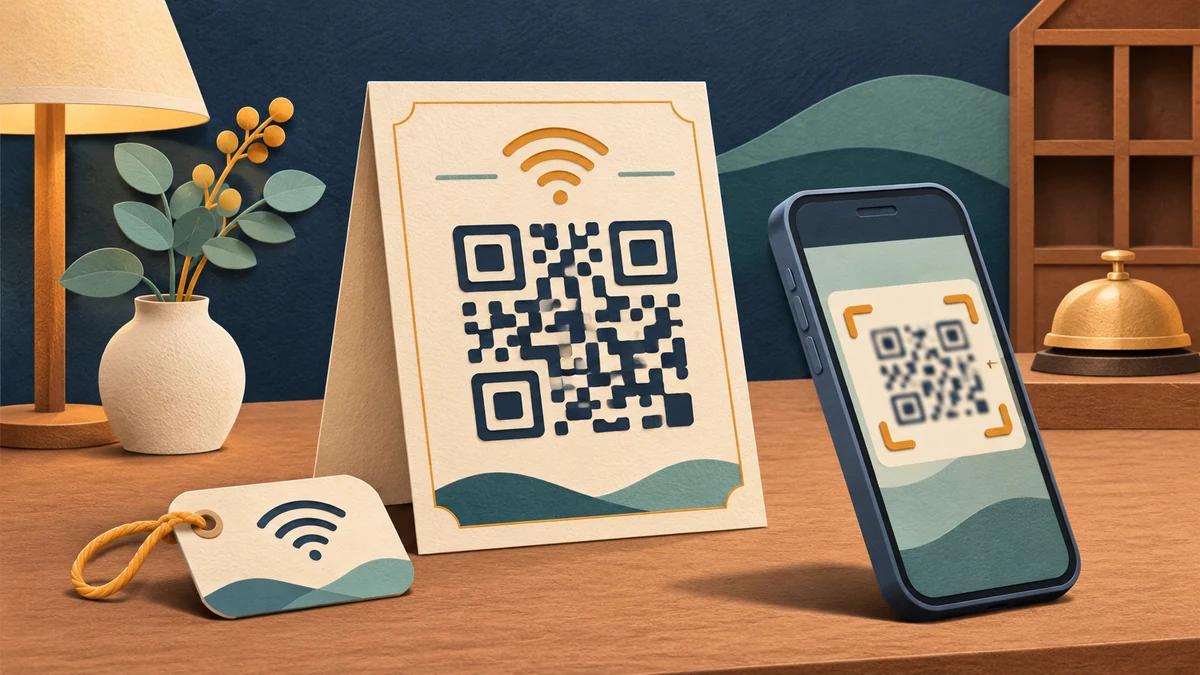
A Wi-Fi QR code can make guest access easier: a compatible phone scans the pattern and offers to join the named network. But the image contains information that can grant access. Anyone who can scan it may be able to read or use the network name and password, so create a separate guest network when your router supports one.
First, prepare a guest network
For a visitor sign, waiting room or rental, use your router’s guest-network option if available. Give it a password intended for guests and use the router’s controls to limit access to other devices or local network settings where those options exist. A QR code does not make a shared password temporary or private. If access should end, turn off the guest network or change its password and replace the displayed code.
Do not encode an important work or home password just because it is convenient. Treat a saved Wi-Fi QR image like a credential. If the password changes, create a new code and remove old printouts and shared copies.
Create and test the code
- Check the network details. Record the exact Wi-Fi name (SSID), security type and guest password. Network names and passwords can contain punctuation; copy them carefully.
- Choose a compatible Wi-Fi QR generator. The commonly used
WIFI:payload format documented by ZXing carries fields for the network name, security type and password. The Android Open Source Project's Wi-Fi QR parser is one example of a client that recognizes this format. Scanner implementations differ, so a format that works on one phone may not behave identically in every camera or scanning app. - Enter details only into a tool you trust. Read its privacy explanation. If it says processing happens in your browser, you can still use the browser’s Network panel with synthetic data to check for requests during generation; do not test by exposing a real password to an untrusted service.
- Scan with a second device. Confirm that the phone identifies the expected network and asks to join it. Then confirm it connects to the guest network, not another nearby network with a similar name.
- Test the printed sign. Use a dark code on a light background, keep the blank border around it and scan the final print from the distance guests will use. Keep the password available in a safe manual fallback for devices that do not recognize the Wi-Fi payload.
Google's Android Wi-Fi instructions describe sharing a network through a QR code on supported devices. Menus and scanner behavior differ across versions, manufacturers and phone software. Some cameras display the data or an action instead of immediately joining; the person scanning still controls whether to connect.
If scanning does not connect
- Confirm that the SSID and password match exactly, including capital letters and punctuation.
- Verify that the QR’s security type matches the router’s current configuration. An open network uses a different payload than a password-protected one.
- Try the native camera on a second, current phone. If it only shows text, use the phone’s Wi-Fi settings or a scanner that explicitly handles Wi-Fi configuration payloads.
- Increase the code’s physical size, improve light and contrast, remove glare, and preserve the blank border. Test a fresh print rather than a screen photo of a print.
- If the router has changed its password or security mode, regenerate the code. The old pattern still contains the old details.
What a QR code does not do
A Wi-Fi QR code does not encrypt the credentials inside its pattern, expire by itself, or limit how many people can join. A static pattern keeps the same data until it is replaced. Anyone who gets the image can potentially decode its contents. For temporary or controlled access, use router features that actually enforce those limits rather than relying on a printed code.
EkkySoft’s QR Code Generator can create a static Wi-Fi code and download it as PNG or SVG. Use a guest-network password, test on the target devices, and treat the downloaded image as sensitive.